Get monthly coaching and support to FINALLY gain momentum in your business without burning out in the process. 🦄 Learn more about WAIM Unlimited.


Even though I taught myself how to use the program, after a couple years of near-daily use, I feel pretty comfortable with it. But, it occurred to me the other day that there is still SO much that I don’t know about Photoshop.
I can always do whatever I need to do with the foundation of skills I have, but every once in a while I take a look at the various tools and options that I don’t use on a regular basis and think to myself: What if there’s some awesome tool out there I’m missing out on?
So I recently went on a mission to expand my design horizons.
And while I’m a big fan of learning new things, I have to admit, these days it’s hard to find the time to sit down and watch endless Photoshop tutorials (plus, let’s be honest, most of them are boring! My coffee-induced ADD can’t handle it!)
Side note: “TipGIF” isn’t technically a thing (I made up the term.) BUT I think tips are most helpful when you can see them in action, so I looked up how to make GIFs in Photoshop, and behold, the TipGIF was born. Maybe it‘ll catch on?
Another side note: I use Adobe Photoshop CC on a Mac (though I’ve included PC alternatives as well.)

This is especially helpful when creating graphics with hand-lettering because you can remove the white background of your paper to isolate your hand-drawn element.
**You can also set layers with white backgrounds to Blending mode “Multiply” and their white backgrounds will become transparent, allowing you to place the layer on top of whatever you need!**
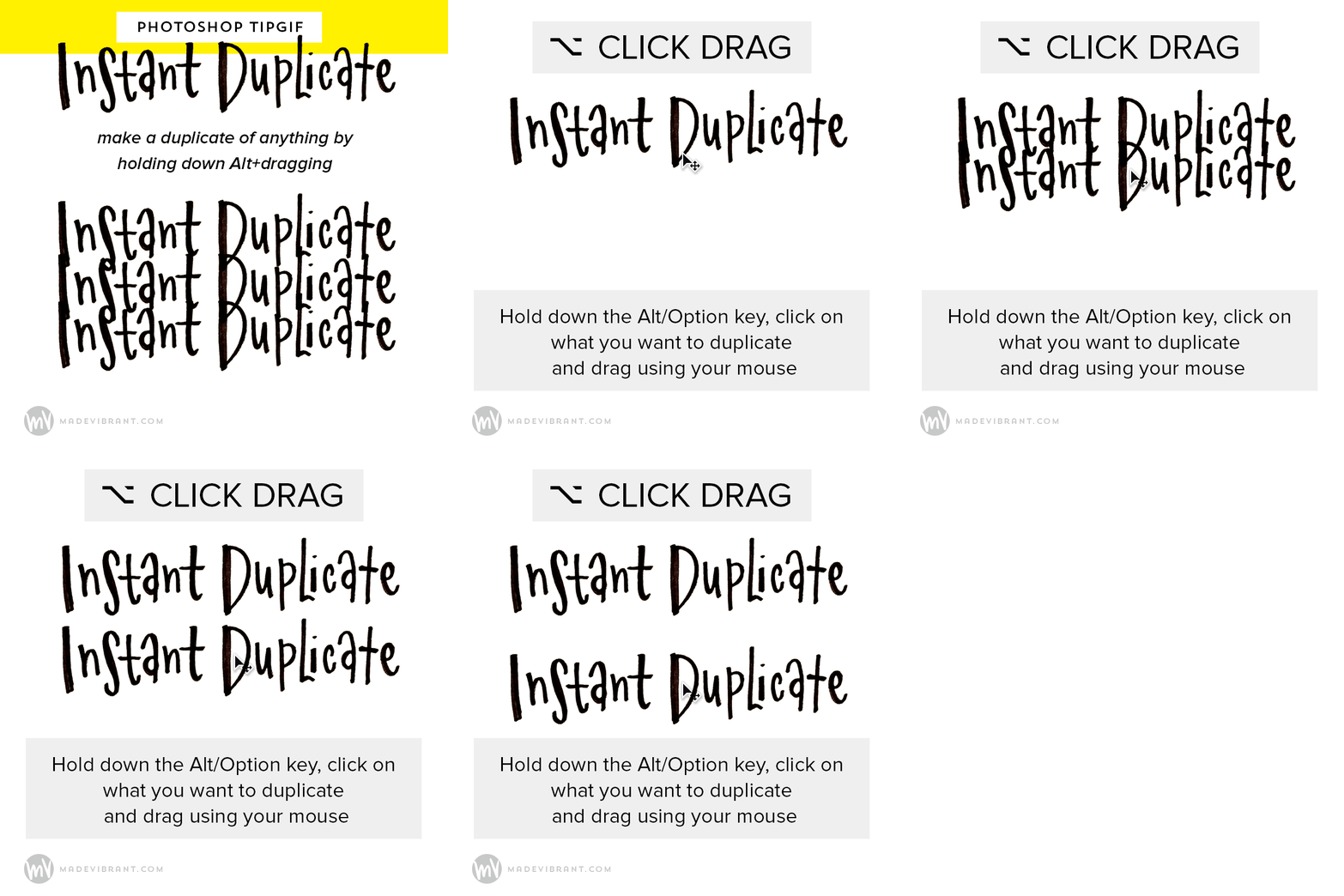
I first learned about this little tip in an Intro to Illustrator class at Alt Summit back in 2012, but it was one of those simple ones that changed EVERYTHING for me. By holding down Alt, then clicking and dragging, you can duplicate shapes, layers, images, even layer styles!
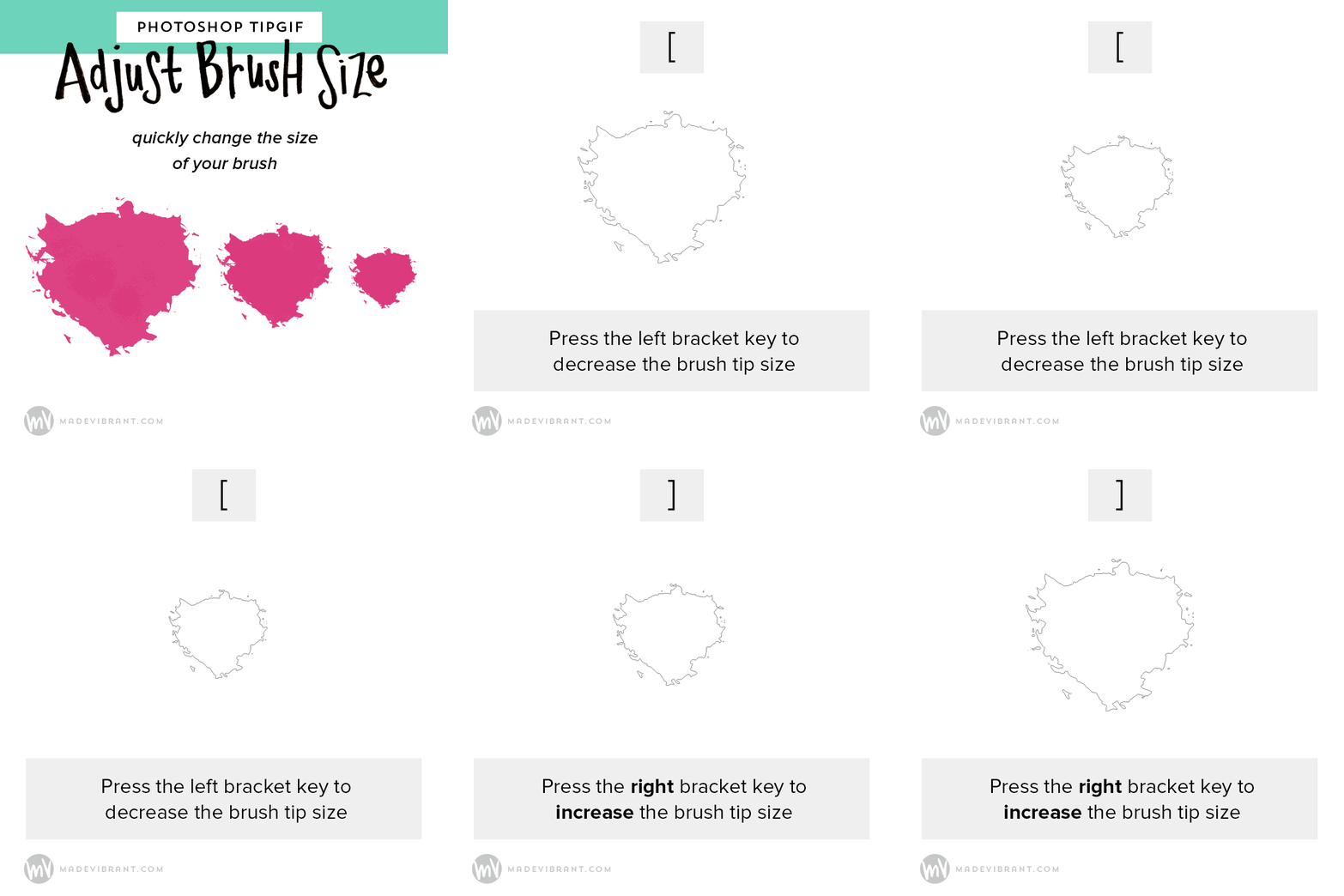
Just a handy little keystroke here, but to adjust the size of your brush, simply press the left or right brackets!
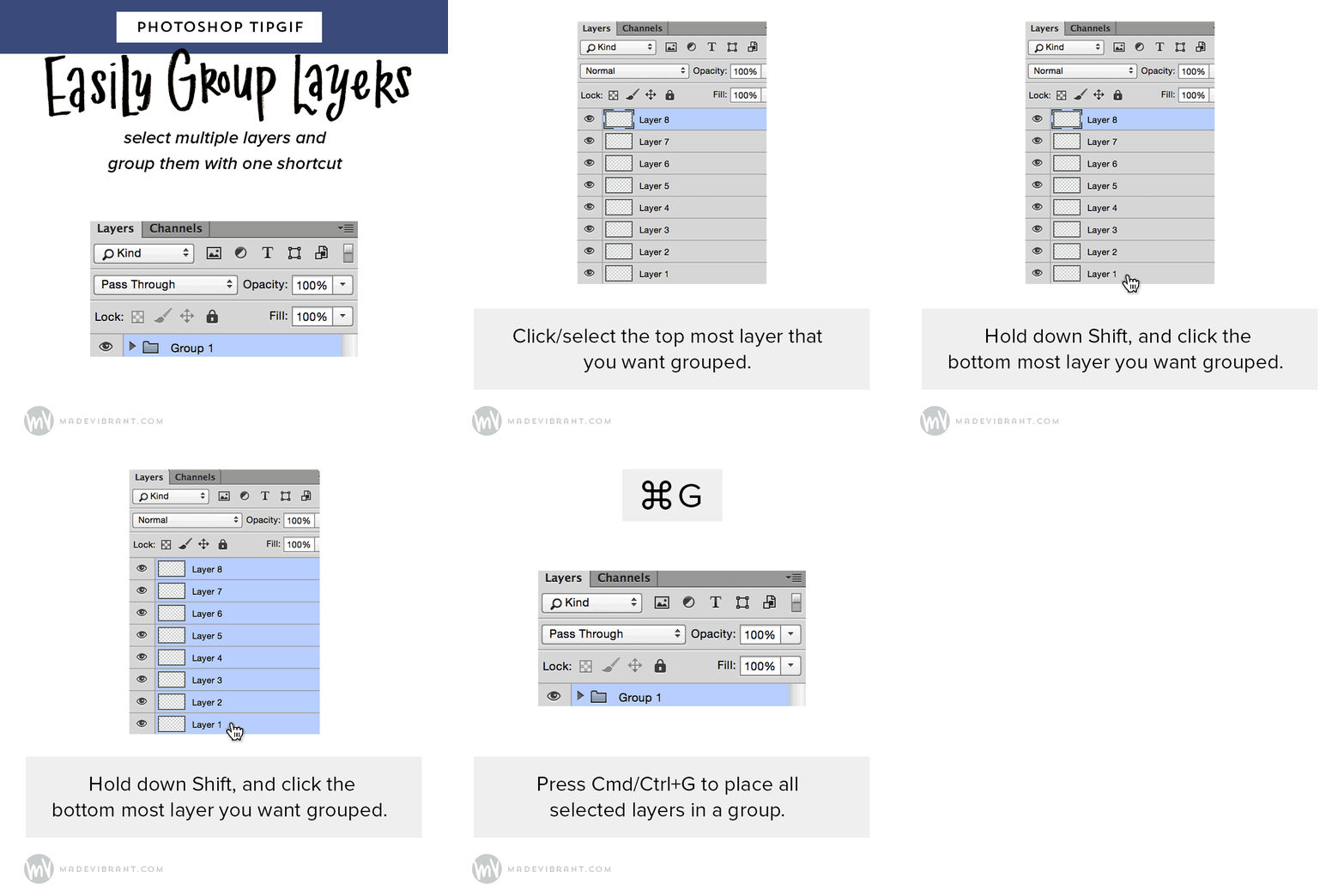
Grouping layers can be especially helpful if you need to quickly hide/unhide certain layers or apply a layer style to a group. To easily place multiple layers in a group:
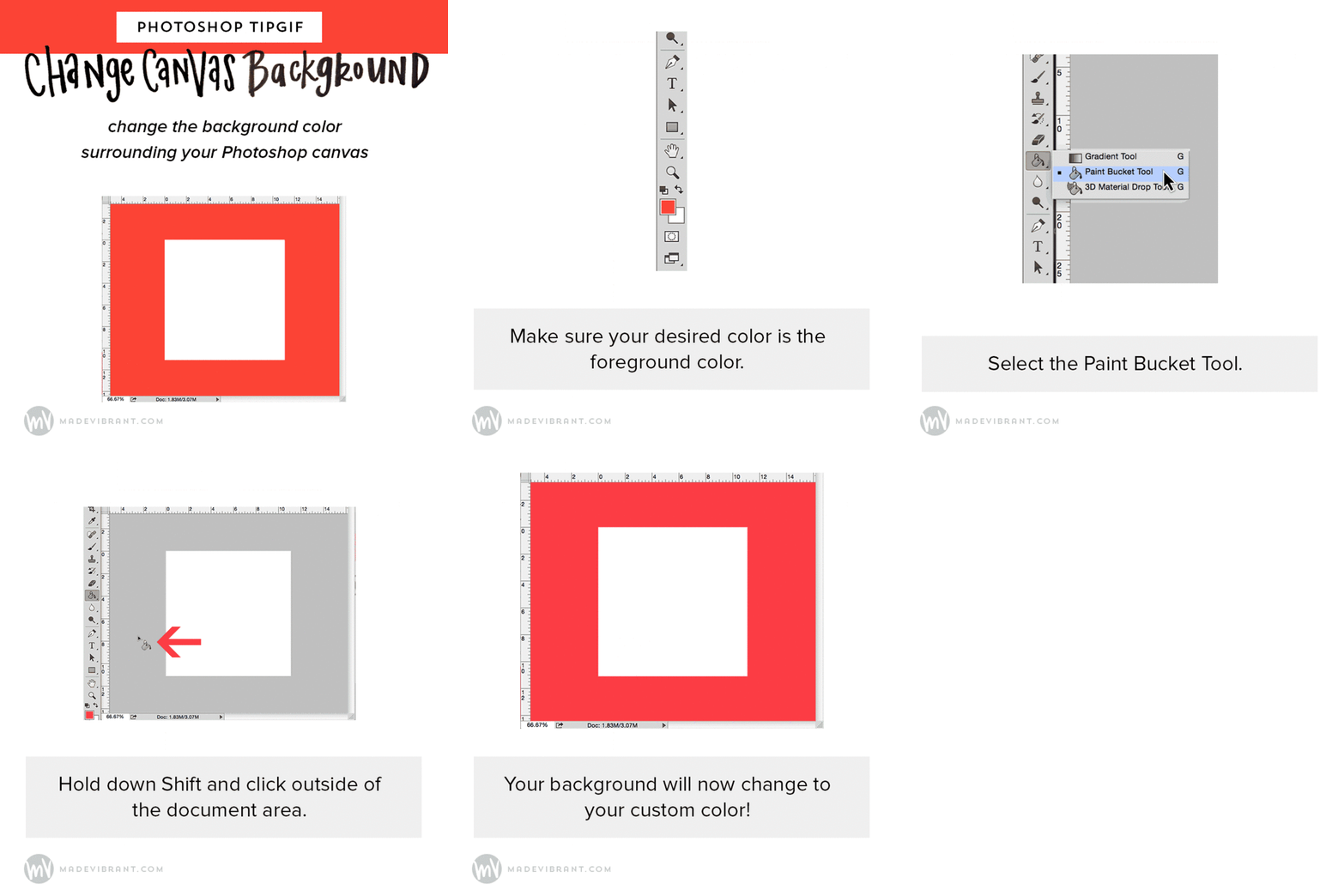
Depending on your Photoshop settings, the background color behind your canvas area is probably some version of gray. However, if you want to see how your photos/graphics look on a white background or black background (or you just want to jazz up your workspace with some bright colors) you can use this shortcut to customization.
(If you want to undo this action, right-click outside the document area and select one of the default gray options.)

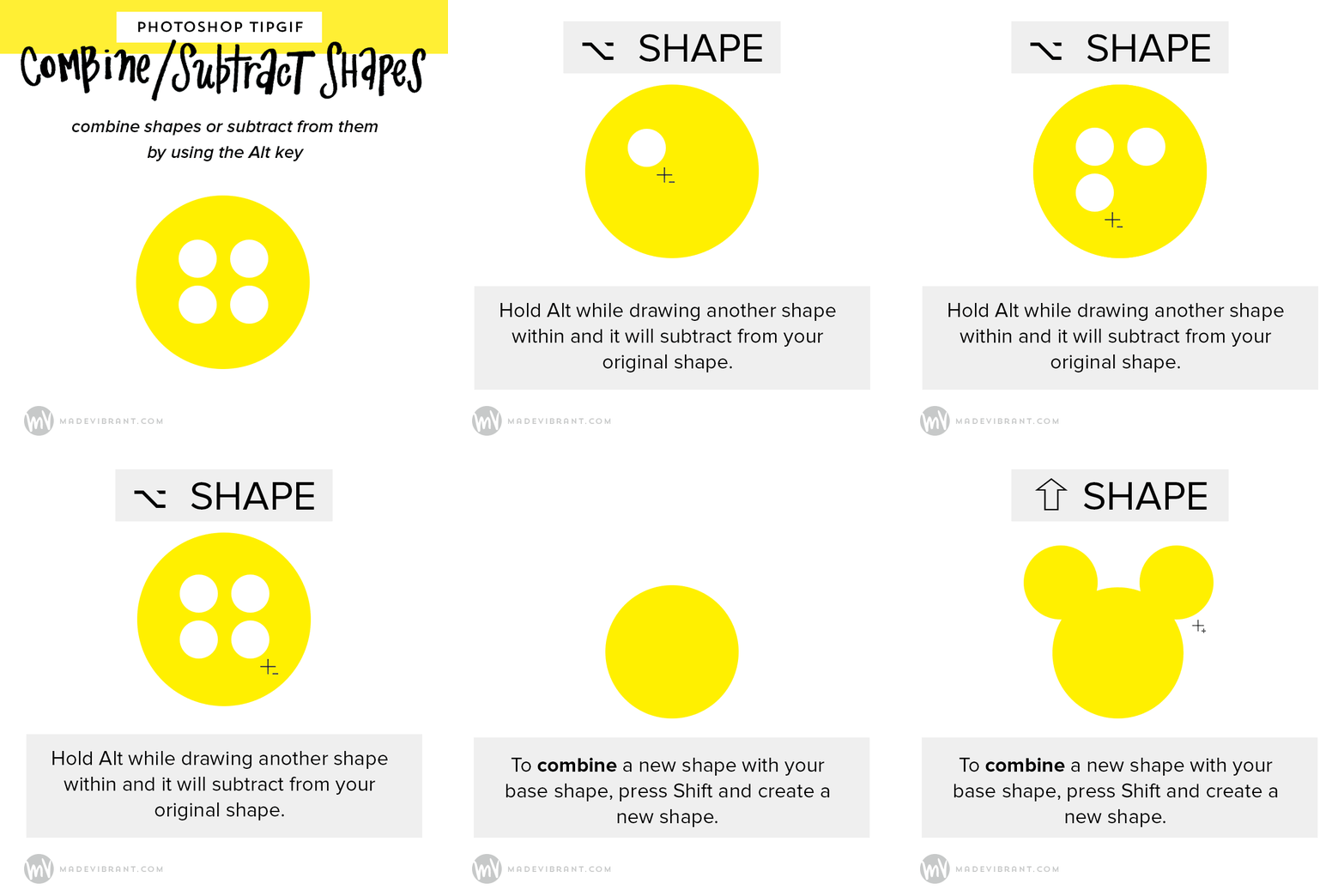
I use this trick a lot when I put together mood boards. By creating your grid of rectangles in your mood board, you can then drop your images on top, Alt+click and keep your nice crisp gutters between your images!
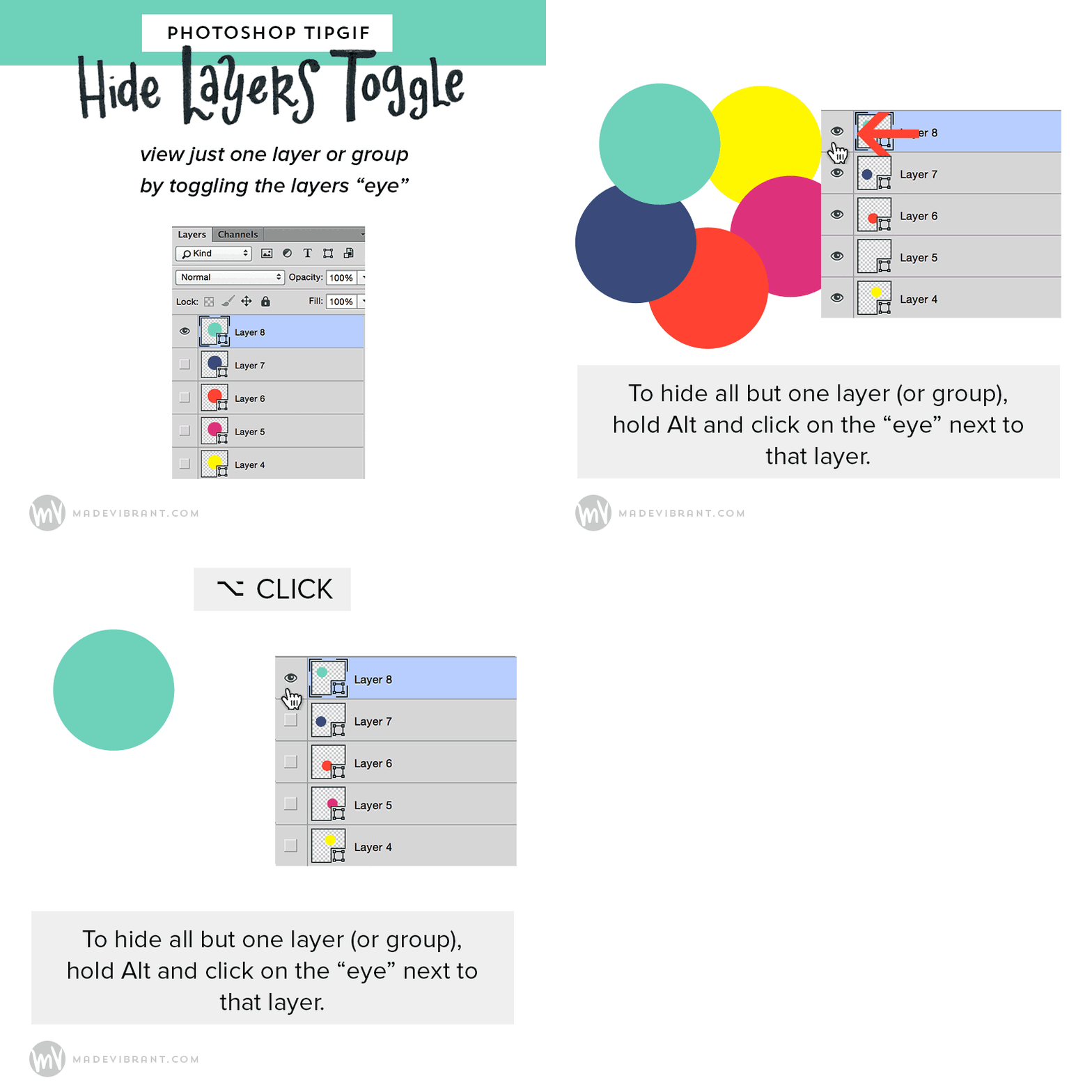
I’m sure you know you can hide the visibility of layers by clicking on the “eye” in the Layers palette, but did you know that you can Alt+click the eye icon to hide all other layers except that one? And to reverse it, simply Alt+click the layer again.
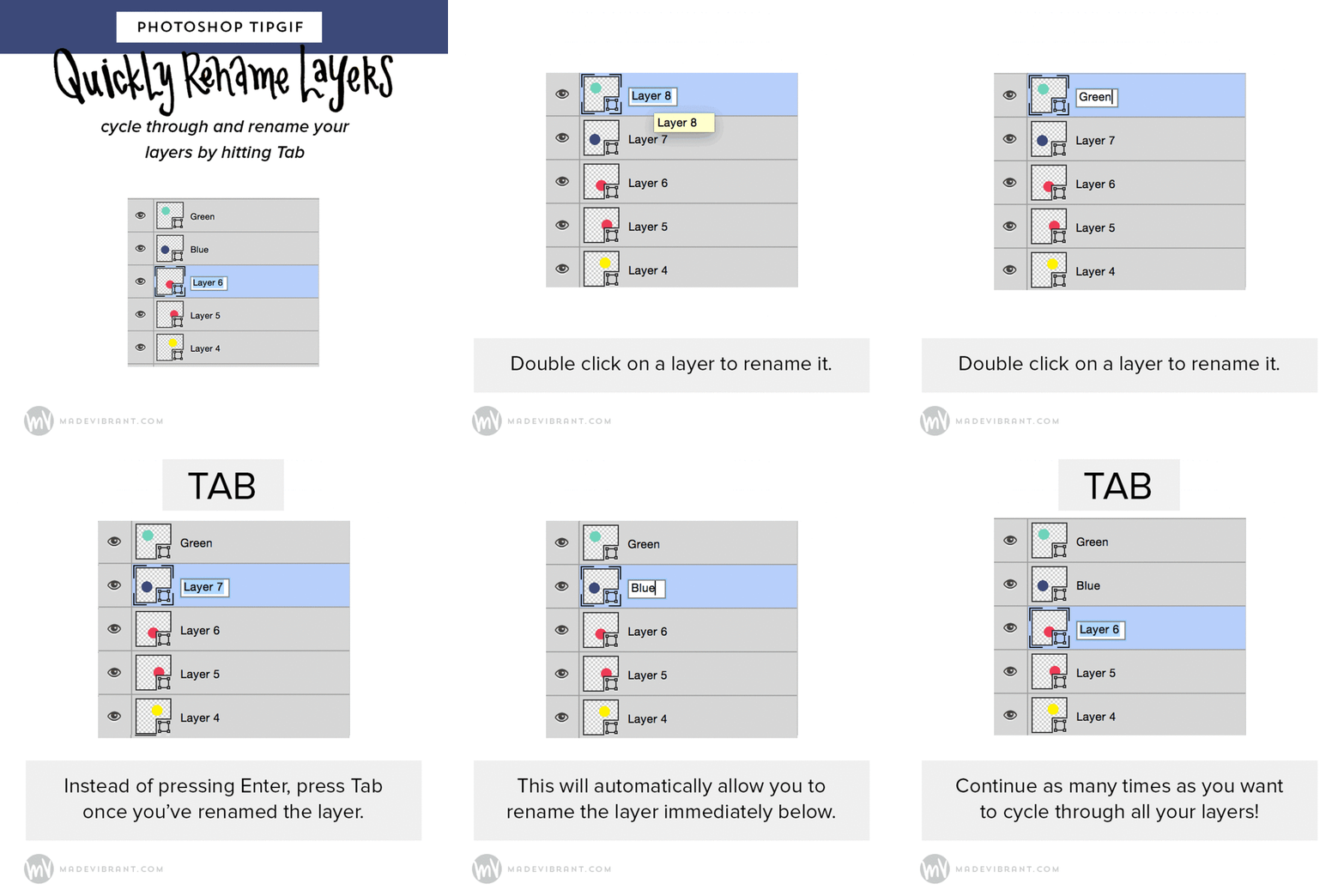
Naming layers properly can be a HUGE help when you’re dealing with complex files. Cycle through and properly name your files by:
I hope you found these little tricks helpful!
